
An HDMI encoder for IPTV takes the video from any HDMI source, such as a cable box, camera, PC, or media player, and turns it into a network stream. Every TV, Smart TV app, or IPTV player on your network can then watch it like a channel. Hotels, gyms, churches, sports bars, and schools use HDMI encoders to build their own in-house TV systems without running coax cable.
This guide helps you pick the right HDMI to IPTV encoder, choose the right streaming protocol, and set it up step by step. If you’re new to the basics, start with our pillar guide: what is an IPTV encoder.
Quick answer
- For in-building TV (hotels, offices): choose an HDMI encoder with UDP multicast and H.264.
- For streaming to the internet or remote sites: choose one with SRT or RTMP.
- For phones, browsers and Smart TV apps: choose one with HLS output.
- For 4K or low bandwidth: choose H.265 (HEVC) encoding.
- Budget: single-channel HDMI encoders start at roughly $280 and pro models cost about $500 to $560.
Key Takeaways
- An HDMI encoder converts one HDMI signal into an IP stream. You need one encoder channel for each live channel you want to send.
- Match the protocol to the job: UDP multicast for local networks, HLS for apps and browsers, SRT or RTMP for the internet.
- H.265 cuts bandwidth for the same quality but needs H.265-capable TVs and players.
- Most paid TV boxes use HDCP copy protection, which blocks HDMI encoders. Only encode content you’re allowed to redistribute.
- Test your stream in VLC before you connect TVs or set-top boxes.
How an HDMI Encoder for IPTV Works
An HDMI to IPTV encoder does four jobs in a few hundred milliseconds:
- Capture: it takes the raw video and audio from the HDMI input.
- Compress: it shrinks the video with H.264 or H.265 so it fits on a network.
- Package: it wraps the stream in a protocol such as UDP, HLS, RTMP, or SRT.
- Send: it pushes the stream out through its Ethernet port to TVs, set-top boxes, a server, or the internet.
On the viewing side, an IPTV set-top box, a Smart TV app, or a player like VLC opens the stream address. Many hotel and office systems also add a middleware server that builds a channel list and an EPG, so guests see a normal TV menu. For the full picture of how IPTV delivery works, see what is IPTV.
Which Streaming Protocol Should You Use?
The protocol decides where your stream can go. Most HDMI encoders output several at once, so you can feed local TVs and an online platform at the same time.
| Protocol | Best for | Latency | Works over the internet? |
|---|---|---|---|
| UDP multicast | Hotel, hospital and office TV on one local network | Very low | No, local network only |
| UDP / RTP unicast | One encoder to one receiver or server | Very low | Possible, but unreliable |
| HLS | Phones, browsers and Smart TV apps | High (several seconds) | Yes |
| RTMP / RTMPS | Sending to YouTube, Facebook or a streaming server | Medium | Yes |
| SRT | Reliable contribution between sites over the public internet | Low | Yes, with error recovery |
| RTSP | Pulling the stream into a server, NVR or VLC | Low | Usually local |
- UDP multicast sends one copy of the stream that every TV can join, so 200 rooms use the same bandwidth as one. Your network switches must support IGMP snooping, or multicast traffic can flood the network.
- HLS is the format Apple created for adaptive streaming. Apple’s HLS documentation explains how it splits video into short segments for smooth playback.
- SRT is an open-source protocol built to protect live video on unstable internet links. The SRT Alliance maintains it, and most pro encoders now support it.
H.264 vs H.265: H.264 plays on almost every TV and box. H.265 (HEVC) delivers similar quality at a lower bitrate, which helps with 4K and with limited bandwidth, but older receivers may not decode it. Check your IPTV internet speed needs before you pick a bitrate.
Best HDMI Encoders for IPTV in 2026 (Compared)
These four models cover the budget, mid-range, and pro options most buyers compare. Specs and prices come from the manufacturer or retailer pages linked below, checked in October 2026.
| Model | Max HDMI input | Codecs | Key protocols | UDP multicast | PoE | Price (approx.) |
|---|---|---|---|---|---|---|
| LinkPi ENC1Pro | 4K at 60fps | H.265, H.264 | UDP, HLS, RTMP, SRT, RTSP, NDI HX (license) | Yes | Not listed | $278 to $323 |
| URayCoder H.264/H.265 HDMI encoder | HD (exact max not listed) | H.265, H.264 | UDP, RTP, HLS, RTMP, SRT, RTSP, HTTP | Yes | Not listed | Varies by seller |
| Kiloview E3 | 4K at 30fps (plus 3G-SDI input) | H.265, H.264 | NDI HX2/HX3, SRT, RTMP, HLS, TS over UDP/RTP/RTSP | Not listed | Yes | $499 |
| Magewell Ultra Encode HDMI | 4K at 60fps in, up to 1080p60 encoded | H.265, H.264 | RTMP, SRT, HLS, TS over UDP/RTP, RTSP, NDI HX2 | Not listed | No (5V adapter) | $555 |
1. LinkPi ENC1Pro: Best Value 4K HDMI Encoder for IPTV
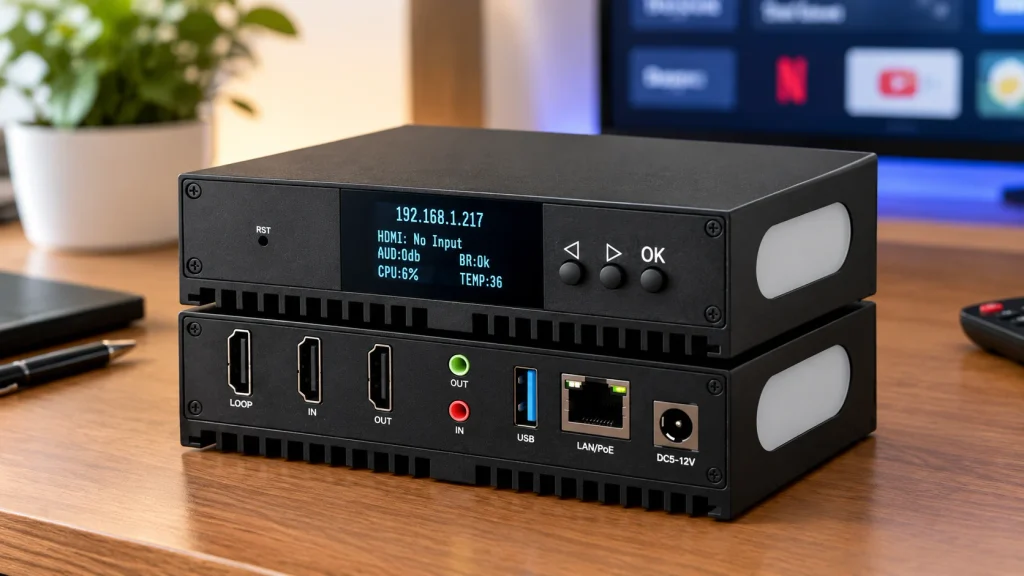
The LinkPi ENC1Pro encodes 4K at 60fps in H.265 or H.264 and supports both UDP unicast and multicast. That makes it a strong low-cost pick for in-building IPTV. It also offers HLS, RTMP, SRT, and RTSP, with HDMI loop-out so you can keep a local monitor connected. NDI HX needs a separate license.
Best for: small hotels, bars, and offices that want 4K multicast on a budget.
2. URayCoder HDMI Encoder: Best Budget Option for Multicast
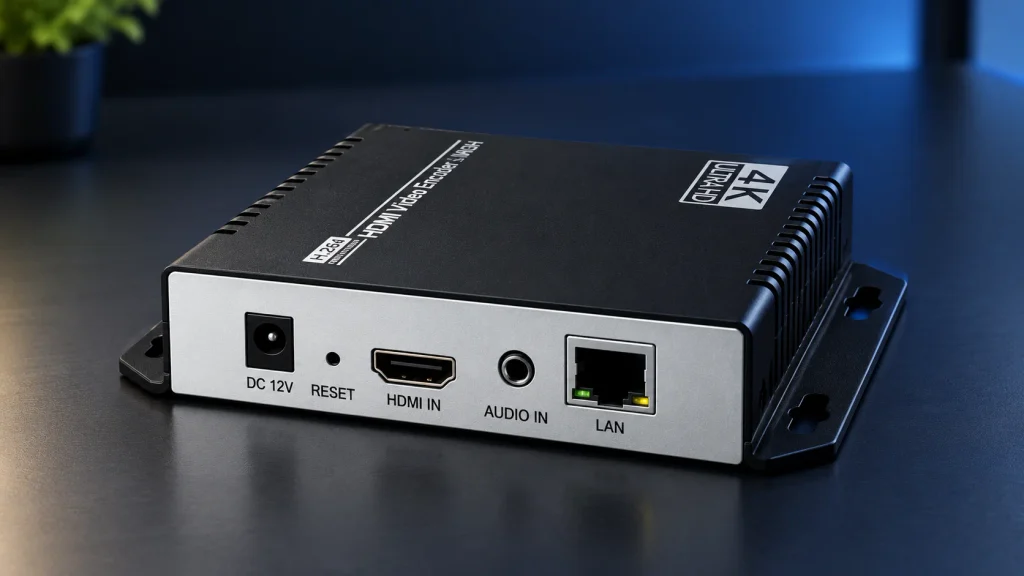
URayCoder’s H.264/H.265 HDMI encoder lists a long protocol set: SRT, HTTP, RTSP, UDP, RTP, multicast, unicast, RTMP, HLS, and more. It’s a common choice for simple one-channel IPTV setups. The listing doesn’t give a maximum resolution, so confirm 1080p support with the seller before you buy.
Best for: one or two channels on a tight budget.
3. Kiloview E3: Best for Mixed HDMI and SDI Sources
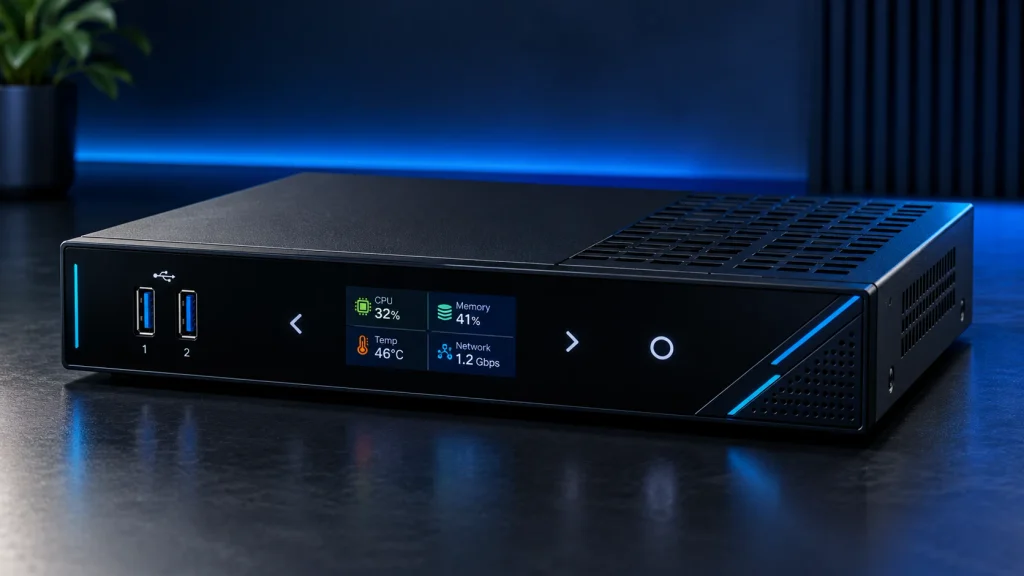
The Kiloview E3 has one HDMI input (up to 4K30) and one 3G-SDI input, and can encode both at 1080p60 at the same time. It supports NDI HX2/HX3, SRT, RTMP, HLS, and TS over UDP/RTP/RTSP, and it runs on PoE, so one network cable powers it.
Best for: venues and studios that mix cameras and HDMI sources.
4. Magewell Ultra Encode HDMI: Best Pro-Grade Encoder
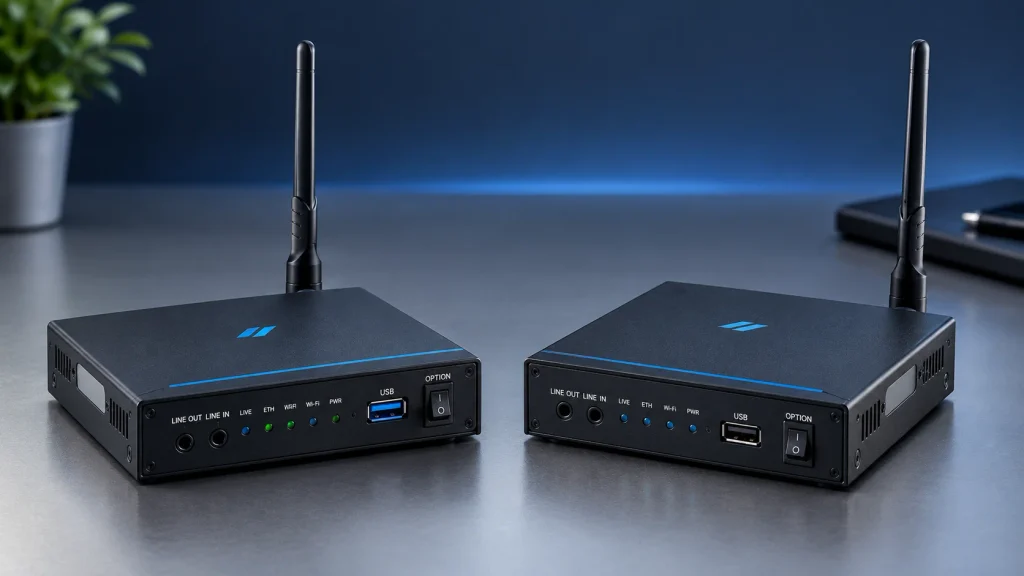
The Magewell Ultra Encode HDMI accepts up to 4K60 input and encodes a main stream up to 1080p60 plus a sub-stream. It supports RTMP/RTMPS, SRT, HLS, TS over UDP and RTP, RTSP, and NDI HX2; it can stream to several destinations at once and is managed through a web interface and an HTTP API. Markertek lists it at $555.
Best for: churches, schools, and events that need a reliable, well-supported encoder.
How to Set Up an HDMI Encoder for IPTV (Step by Step)
Menu names differ between brands, but the process is the same on almost every HDMI to IPTV encoder.
- Connect the source. Plug your HDMI source (camera, PC, media player or receiver) into the encoder’s HDMI input. Use the HDMI loop-out if you want to keep a local monitor.
- Connect the network. Plug the encoder into your switch or router with an Ethernet cable. If it supports PoE, the same cable can power it.
- Find the encoder’s IP address. Check the front display, the brand’s discovery tool, or your router’s device list. Then open that IP address in a web browser to reach the control panel.
- Set a fixed IP. Give the encoder a static IP address so the stream URL never changes.
- Choose video settings. Start with 1080p at 30fps, H.264, and a bitrate of 4 to 6 Mbps. Switch to H.265 only if every receiver supports it.
- Choose the protocol. For local TVs, enable UDP multicast and set an address such as
udp://@239.1.1.1:1234. For apps and browsers, enable HLS. For an online platform or remote site, set up RTMP or SRT. - Test the stream. Open the stream address in VLC with Media > Open Network Stream. If it plays smoothly, your encoder is working. Our guide to the best IPTV player for Windows lists other players you can test with.
- Add it to your channel list. Put the stream address in an M3U playlist or your middleware, so it appears as a channel. Our guide to M3U playlists and Xtream Codes explains the format.
What to Check Before Buying an HDMI Encoder for IPTV
- Number of channels: one encoder channel per live channel. Multi-channel units save space if you need 4 or more.
- Resolution and frame rate: 1080p60 is enough for most TV channels; buy 4K only if your source and screens are 4K.
- Codec support: H.264 for maximum compatibility, H.265 for lower bandwidth.
- Protocols: confirm UDP multicast for in-building TV, and HLS, RTMP, or SRT for online delivery.
- Audio input: HDMI embedded audio is standard; a line-in helps when you use an external mixer.
- Power and management: PoE, a web control panel, and remote firmware updates make larger installs much easier.
- Support and updates: pick a brand that publishes manuals and firmware on its own website.
Common Uses for an HDMI Encoder for IPTV
| Use case | Typical setup |
|---|---|
| Hotels and hospitals | One encoder per channel, UDP multicast to set-top boxes or Smart TV apps in every room |
| Sports bars and gyms | A few HDMI sources sent to many screens over the existing network |
| Churches and schools | A camera feed sent to classrooms or overflow rooms, plus RTMP to YouTube |
| Digital signage | A PC or media player sending menus and ads to screens across a building |
| Live events | SRT from the venue to a studio or cloud server over the internet |
Troubleshooting HDMI Encoder Problems
| Problem | Likely cause | Fix |
|---|---|---|
| Black screen or “no signal” | HDCP copy protection on the source | Most cable, satellite, and streaming boxes use HDCP, which blocks capture. Use a source without HDCP that you have the rights to share. |
| Stream plays in VLC but not on TVs | Wrong protocol or codec | Match the protocol to the receiver, or switch from H.265 to H.264. |
| Network slows down after enabling multicast | IGMP snooping is off | Turn on IGMP snooping on your managed switches. |
| Audio out of sync | Frame rate or audio settings mismatch | Match the encoder’s frame rate to the source and use the HDMI embedded audio. |
| Buffering or pixelation | Bitrate too high for the network | Lower the bitrate, use wired connections, or switch to H.265. |
| High delay on live events | HLS adds several seconds | Use UDP, RTSP or SRT where low latency matters. |
FAQ
-
What is an HDMI encoder for IPTV?
It is a device that turns an HDMI video signal into a compressed network stream, such as UDP, HLS, RTMP, or SRT. TVs, set-top boxes, and IPTV players can then watch it as a channel.
-
Can I turn my cable box into an IPTV channel with an HDMI encoder?
Usually not. Most cable and satellite boxes use HDCP copy protection, which stops the encoder from capturing the picture. Redistributing paid channels also needs permission from the provider.
-
Is H.265 better than H.264 for IPTV?
H.265 gives similar quality at a lower bitrate, which helps with 4K and limited bandwidth. H.264 is safer if your TVs or boxes are older, because almost everything can play it.
-
How many channels can one HDMI encoder handle?
A single-channel encoder handles one HDMI source. For more channels, use one encoder per source or a multi-channel unit.
-
What bandwidth does an HDMI IPTV encoder need?
A 1080p H.264 stream usually needs about 4 to 8 Mbps. With UDP multicast, that bandwidth stays the same no matter how many TVs watch on the local network.
-
Do I need an HDMI encoder to watch IPTV at home?
No. An HDMI encoder is for creating your own channels. To watch IPTV at home, you only need an IPTV service and a player app.
Final Verdict
The best HDMI encoder for IPTV depends on where your stream needs to go. For in-building TV, pick a model with H.264 and UDP multicast, like the LinkPi ENC1Pro. For mixed camera setups, the Kiloview E3 adds SDI and PoE. For pro-grade reliability and many output options, the Magewell Ultra Encode HDMI is the safest choice. Whatever you buy, test every stream in VLC first, and only encode content you have the rights to share.
Want to learn more about the technology behind it? Read our full guide to what an IPTV encoder is or compare IPTV vs OTT delivery.