
You open the app, enter your login details, and instead of your channel list, you get a red message: “IPTV Smarters failed to authorize.” It is one of the most common IPTV Smarters problems, and it usually has nothing to do with the app itself.
In most cases, the error means the server rejected your login. That can come from a simple typo, an expired subscription, a wrong server URL, or a network block. This guide explains every common cause and walks you through the fixes, including device-specific steps for Firestick, Samsung TV, Android, and Roku.
Key Takeaways
- The “failed to authorize” error means your provider’s server did not accept your login details.
- The most common causes are typos in the username, password or server URL, and expired subscriptions.
- Many users fix it in under five minutes by re-entering credentials carefully and restarting the device.
- ISP blocks and DNS issues can also trigger the error; changing DNS or using a VPN often helps.
- Clearing the app cache or reinstalling IPTV Smarters Pro fixes corrupted login data.
- If nothing works on your side, the problem is likely the provider’s server, and only they can fix it.
- Buffering is a separate issue, usually caused by slow internet, weak Wi-Fi or an overloaded server.
What Does “IPTV Smarters Failed to Authorize” Mean?
The “failed to authorize IPTV Smarters” message appears when the app sends your login details to your provider’s server, and the server refuses them. The app is working; the handshake with the server is not.
It helps to understand how the app works. IPTV Smarters Pro is a player, not a content provider. It does not include any channels. It only plays streams from a subscription you load into it, usually through Xtream Codes API or an M3U playlist. If you are new to this, our guide on what IPTV is explains the basics.
When you log in with Xtream Codes, the app checks three things: the server URL, the username, and the password. If any one of them is wrong, inactive, or unreachable, you see “IPTV Smarters Pro failed to authorize” instead of your content.
You may also see related messages such as “Invalid credentials,” “Authorization failed,” or “Account expired.” They usually share the same root causes.
Common Causes of the IPTV Smarters Authorization Error
If you are asking, “Why is my IPTV Smarters not working?” one of these causes is almost always behind it.
| Cause | What happens | Quick check |
|---|---|---|
| Wrong login details | A typo, extra space, or wrong capital letter makes the server reject you | Compare each field with your provider’s email, character by character |
| Wrong server URL | Missing http://, wrong port number, or an old address | Confirm the full URL, including the port (for example:8080) |
| Expired or suspended subscription | The server no longer recognises your account | Log in to your provider’s dashboard or ask support |
| Too many connections | Your plan allows one device, but another device is already streaming | Close the app on other devices |
| ISP or network block | Your internet provider blocks the server’s address | Try mobile data or a VPN |
| DNS problems | Your device cannot find the server’s address | Switch to a public DNS |
| Corrupted app data | Old cached login details clash with new ones | Clear cache or reinstall |
| Outdated app version | Older versions may fail with newer server setups | Update IPTV Smarters Pro |
| Provider server down | The server is offline or under maintenance | Check with your provider |
Typos and expired subscriptions account for most cases. Start there before trying anything technical.
How to Fix “IPTV Smarters Failed to Authorize” (Step by Step)
Work through these fixes in order. Most people solve the problem within the first three steps.
1. Re-enter Your Login Details Carefully
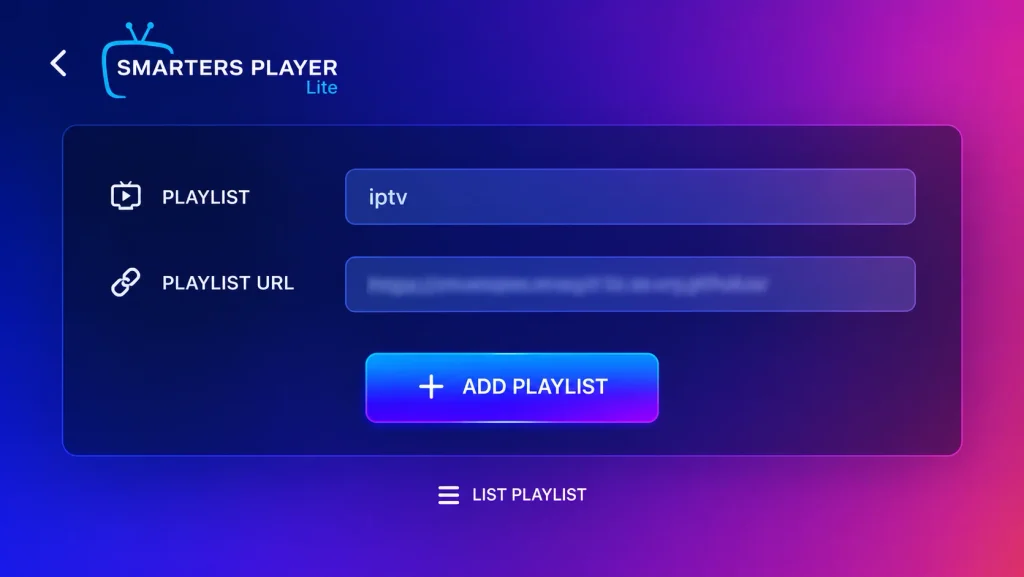
Delete the saved user and add it again. Type the username, password, and URL by hand instead of copying them. Copying often adds a hidden space at the end.
- Usernames and passwords are case-sensitive.
- Do not mix up similar characters, such as 0 and O, or l and I.
- Make sure you picked “Login with Xtream Codes API” if your provider gave you a username, password, and URL.
2. Check the Server URL Format
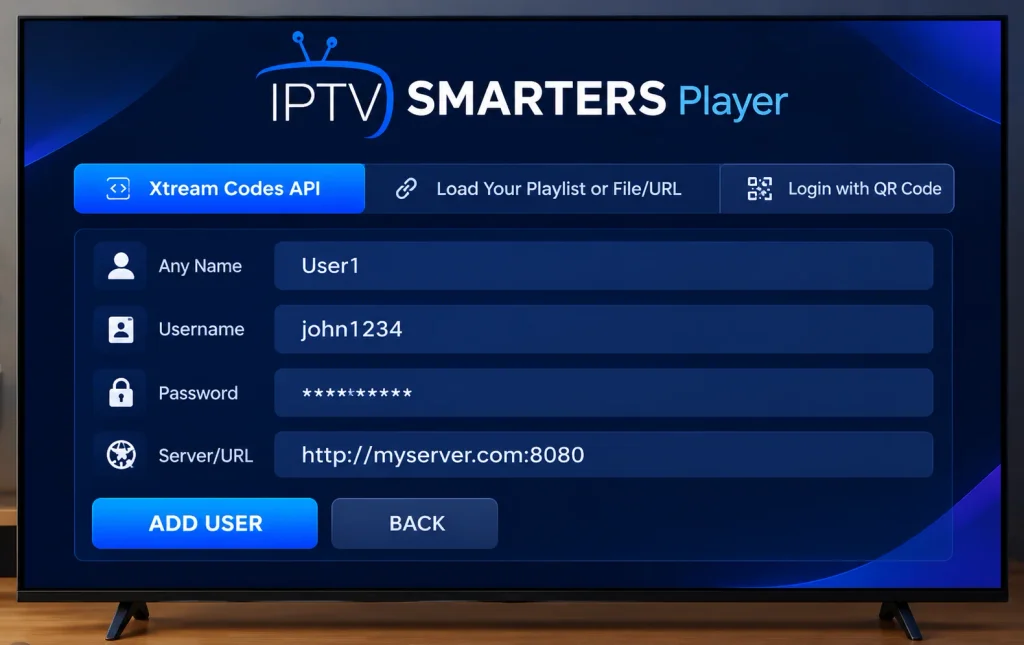
The server URL must be exact. A correct URL usually looks like http://example-server.com:8080. Check that it starts with http:// or https://, includes the right port, and has no extra slash or path at the end unless your provider says so.
If your provider gave you an M3U link instead, use “Load Your Playlist or File/URL.” Our guide on IPTV URL, M3U, and MAC address logins explains which one to use.
3. Confirm Your Subscription Is Active
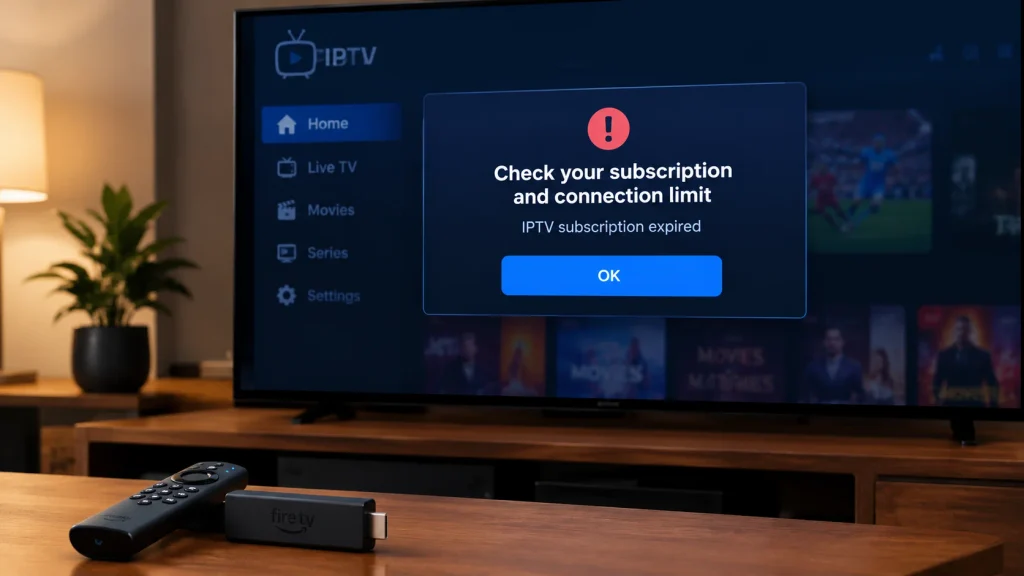
An expired account is one of the top reasons for the IPTV Smarters player failed to authorize message. Check your provider’s dashboard or contact support. Many providers also change server URLs after renewals or migrations, so ask if your details are still current.
4. Close the App on Other Devices
Most plans limit simultaneous connections. If your plan allows one connection and the app is open on your phone, your TV login may be rejected. Fully close the app on all other devices, wait two minutes, then try again.
5. Restart Your Device and Router
Unplug your streaming device and router for 30 seconds. This clears temporary network glitches and refreshes your IP address.
6. Change Your DNS Settings
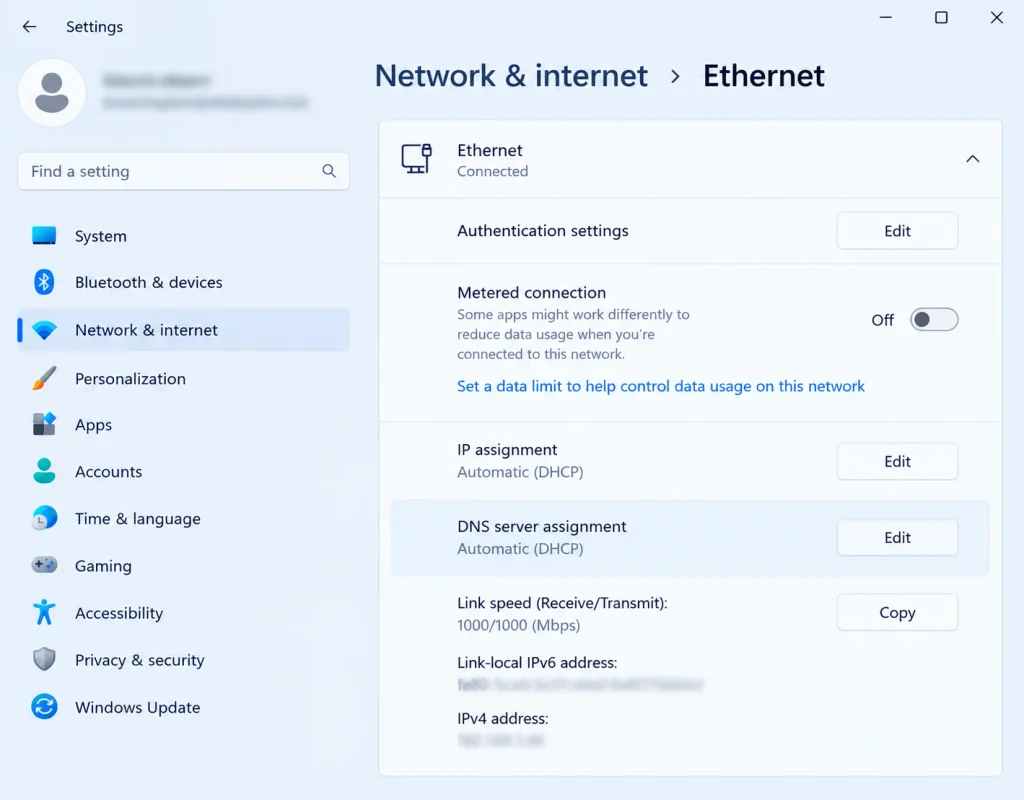
If your device cannot resolve the server’s address, authorization fails. Switching to a public DNS such as Google Public DNS (8.8.8.8 and 8.8.4.4) often helps. Google publishes official setup instructions for Google Public DNS for most devices and routers.
7. Try a VPN or Another Network
Some internet providers block known IPTV server addresses. To test this, connect your device to a mobile hotspot. If it works there, your ISP is likely blocking the server. A VPN can get around the block; see our list of the best VPNs for IPTV.
8. Clear the App Cache and Data
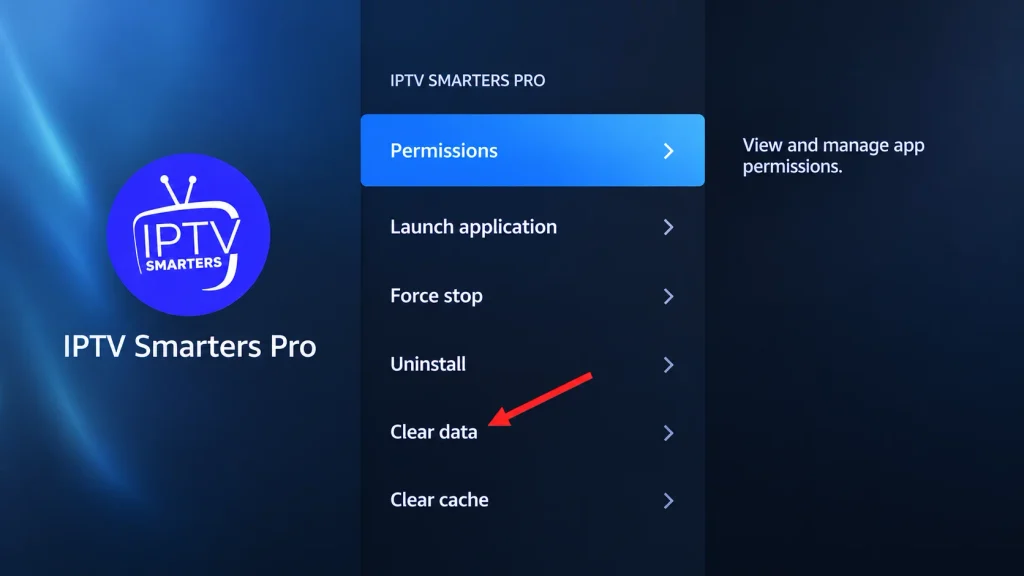
Corrupted cache can keep old, broken login data. On Android-based devices, go to Settings > Apps > IPTV Smarters Pro > Storage, then clear cache and data. You will need to log in again afterwards.
9. Update or Reinstall IPTV Smarters Pro
An outdated version can cause the IPTV Smarters Pro app not working common issues including login errors. Uninstall the app, restart the device, and install the latest version from an official source.
10. Contact Your Provider
If none of the steps work, the problem is almost certainly on the server side. Send your provider a screenshot of the error and your username. If your service has frequent outages, it may be time to compare reliable IPTV services or test one with an IPTV free trial before committing.
Only use licensed services that hold the rights to the content they stream. Rules on IPTV differ by country, so check what applies where you live.
Device-Specific Fixes
The general steps above work everywhere, but some devices have their own quirks.
IPTV Smarters Pro Not Working on Firestick
If IPTV Smarters Pro is not working on Firestick, or you see the authorization error there, try these steps:
- Go to Settings > Applications > Manage Installed Applications > IPTV Smarters Pro.
- Select Force Stop, then Clear Cache, then Clear Data. Amazon’s own guide on clearing app data and cache on Fire TV shows the same path.
- Restart the Firestick from Settings > My Fire TV > Restart.
- Check that your Fire OS is up to date under My Fire TV > About.
- Log in again with freshly typed details.
Firestick models have limited storage. If storage is almost full, the app can crash or fail to save login data, so remove apps you no longer use.
IPTV Smarters Pro Samsung TV Authorization Failed
Samsung and LG smart TV versions of the app work a little differently from the Android version. Some versions are tied to your TV’s device ID or MAC address and need activation before login works. If you see an authorization failed message on a Samsung TV:
- Check whether the app shows a device activation status or MAC address on its start screen.
- Confirm with your provider or the app’s support that the TV is activated.
- Update the TV’s software under Settings > Support > Software Update.
- Uninstall and reinstall the app from the Samsung app store.
IPTV Smarters Pro Not Working on TV (Android TV and Google TV)
On Android TV and Google TV boxes, go to Settings > Apps > IPTV Smarters Pro, then clear cache and storage. Also check the date and time settings. A wrong system date can break secure connections to the server, which leads to failed logins.
IPTV Smarters Not Working on Roku
IPTV Smarters is not available in the Roku Channel Store, so it will not install on Roku directly. You can still watch it by screen mirroring from an Android phone or Windows PC, or by using AirPlay from an iPhone. Roku explains how in its screen mirroring support article. For a smoother experience, a device that runs the app natively, such as a Firestick or Android TV box, is a better choice. Our list of the best IPTV players covers good alternatives for each device.
iPhone, iPad and Windows
On iOS, delete and reinstall the app, since iOS does not offer a separate cache-clearing option. On Windows, run the app as administrator and check that your firewall is not blocking it. If the app still fails, see our picks for the best IPTV player for iOS and the best IPTV player for Windows.
Other Common IPTV Smarters Problems
Once you get past the login screen, you may run into other issues. Here is how to handle the most frequent ones.
IPTV Smarters Pro Buffering
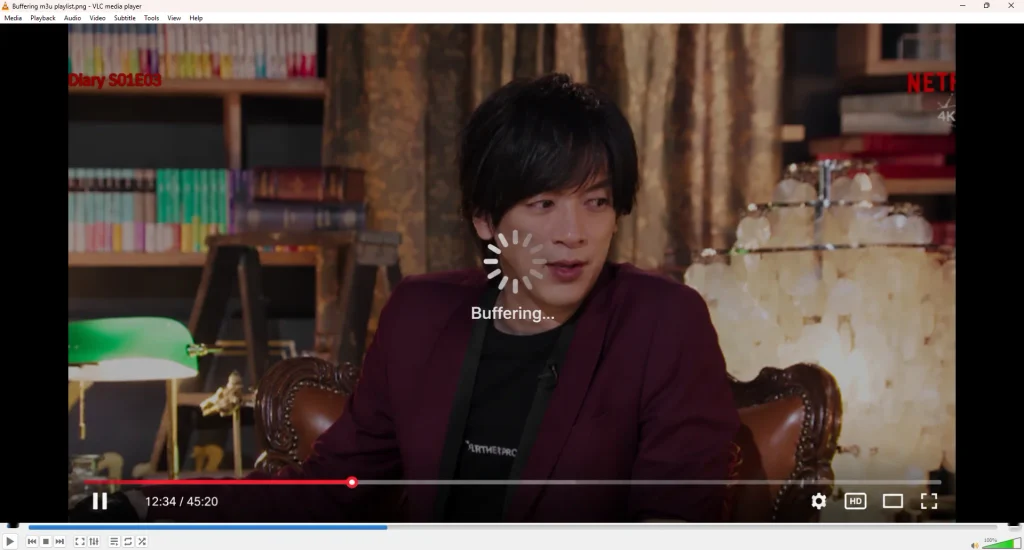
Buffering is not an authorization problem, but it is the most reported complaint. If you search “IPTV Smarters buffering Reddit Firestick,” the advice users share is mostly the same: improve the connection first, then adjust the app.
- Test your speed. Run a test on Speedtest by Ookla. As a reference point, Netflix recommends about 15 Mbps for 4K streaming. Live IPTV often needs a bit more headroom. Read our full guide on IPTV internet speed.
- Use a wired connection. An Ethernet adapter for Firestick removes most Wi-Fi drops.
- Move the router closer or use the 5 GHz Wi-Fi band.
- Change the player. In Settings > Player Selection, switch between the built-in player, VLC, and ExoPlayer.
- Increase the buffer size in the player settings if your version offers it.
- Check for ISP throttling. If streams buffer only at peak hours, your ISP may slow IPTV traffic; a VPN can help.
If buffering continues on every channel with a fast connection, the provider’s server is likely overloaded.
IPTV Smarters Not Working: Channels Will Not Load
If you can log in but channels show a black screen or “No streams available,” refresh your channel list from the app’s home screen. Your provider may also have updated its stream links.
EPG or TV Guide Not Showing
A missing TV guide usually means the EPG data has not loaded. Go to Settings > EPG and refresh it, or ask your provider for an EPG link. Our guide to the electronic program guide (EPG) explains how it works.
App Crashes or Freezes
Clear the cache, free up storage, and update the app. If it keeps crashing on an older device, the hardware may be too slow for the latest version.
Frequently Asked Questions
-
Why does IPTV Smarters say “failed to authorize”?
It means your provider’s server rejected your login. The usual reasons are wrong login details, a wrong server URL, an expired subscription, or a network block.
-
Can a VPN fix the IPTV Smarters failed to authorize error?
Yes, if your internet provider blocks the server. A VPN hides the server address from your ISP. It will not help if your login details are wrong or your subscription has expired.
-
Why is IPTV Smarters Pro not working on my Firestick but working on my phone?
The Firestick may have a corrupted cache, low storage, or an outdated app. It could also be that your phone is using the only allowed connection. Close the app on your phone and clear the Firestick app’s cache.
-
Does IPTV Smarters come with channels?
No. IPTV Smarters is only a player. You need a separate subscription from a provider to watch content.
-
How do I know if the provider’s server is down?
If your login works on no device and no network, even with correct details, the server is probably down. Contact your provider to confirm.
Conclusion
The “IPTV Smarters failed to authorize” error looks alarming, but it is usually easy to fix. Start with the basics: re-type your details, check the server URL and confirm your subscription is active. If that fails, restart your devices, change your DNS, try a VPN, and clear the app’s cache.
If you have tried every step and the error remains, the problem lies with the provider’s server. In that case, contact their support, or compare dependable options in our list of the best IPTV subscription providers.